Filmora Lite: AI Video Creator
- 3.9
- Rating
- 1.00M
- Installs
- Free
- Price

 Analysis by App-foxy
I spent time with Filmora AI as a mobile video editor, paying particular attention to how comfortably it works in different everyday situations. It comes from Wondershare Filmora and sits in the video players and editors category, with a free entry point and a focus on AI-assisted creation. The idea is appealing: turn a rough idea, a few clips, or a simple prompt into something ready to share without requiring the patience of a full desktop editor.
My first impression was that it is aimed at people who want momentum rather than complete manual control. The app is easier to approach than a traditional timeline editor, especially when I wanted to make a short social video quickly. At the same time, its AI-centered workflow means I still had to review the result carefully. Fast creation is useful, but it does not remove the need to check timing, text, music, and visual clarity before publishing.
How Filmora AI feels to use across different needs
I find Filmora AI easiest to judge by the kind of video I’m trying to make: a quick personal recap benefits from a guided start, while a carefully timed tutorial needs closer control. Thinking about that difference helps me separate a useful shortcut from a habit I’ll actually keep. The next section looks at what makes that first-week appeal last—or fade.
You May Also Like

 Blood Strike: 2.5 Anniversary
Blood Strike’s Loadouts Turn Every Drop Into a Tactical Gamble
A close look at Blood Strike’s custom loadouts: how fast access to signature weapons reshapes its battle royale rhythm, rewards preparation, and narrows the gap between fights.

 Pandora - Music & Podcasts
Pandora’s Music Is Easy to Start, but Harder to Recover
Pandora’s strength is its low-effort path from a seed to a station. Its weak spot is how much confidence it asks you to place in connection, setup, and quiet recovery.

 8 Ball Pool
 Is Built on Rivalries, Rematches, and Routine
A close look at the rivalries, rematches, shared routines, and unanswered safety questions that turn a quick pool match into a persistent mobile community.

 Samsung Music
’s Quiet Strength Is Playing What You Already Own
Its reach comes less from spectacle than from dependable access to a personal library. That simplicity is both the app’s strongest retention engine and its ceiling.

 AccuWeather: Weather Radar
AccuWeather Review: A Quick, Clear Forecast for Everyday Decisions
For everyday plans, the best forecast is the one you can understand quickly. AccuWeather makes rain timing, radar, and local conditions easy to act on, with a few trade-offs.

 Hill Climb Racing
Why Hill Climb Racing Still Turns Crashes Into One More Run
A tiny car, a bumpy hill and one more upgrade: Hill Climb Racing keeps resurfacing because its simple chaos makes every near-miss feel personal.
More From Our News Desk
View All News


Readability and navigation on a small screen
The mobile format naturally keeps the main actions close at hand. I found the experience most comfortable when I treated each project as a short sequence of decisions: choose an idea, bring in material, adjust the result, then export or share it. That approach is less tiring than trying to understand every editing possibility at once.
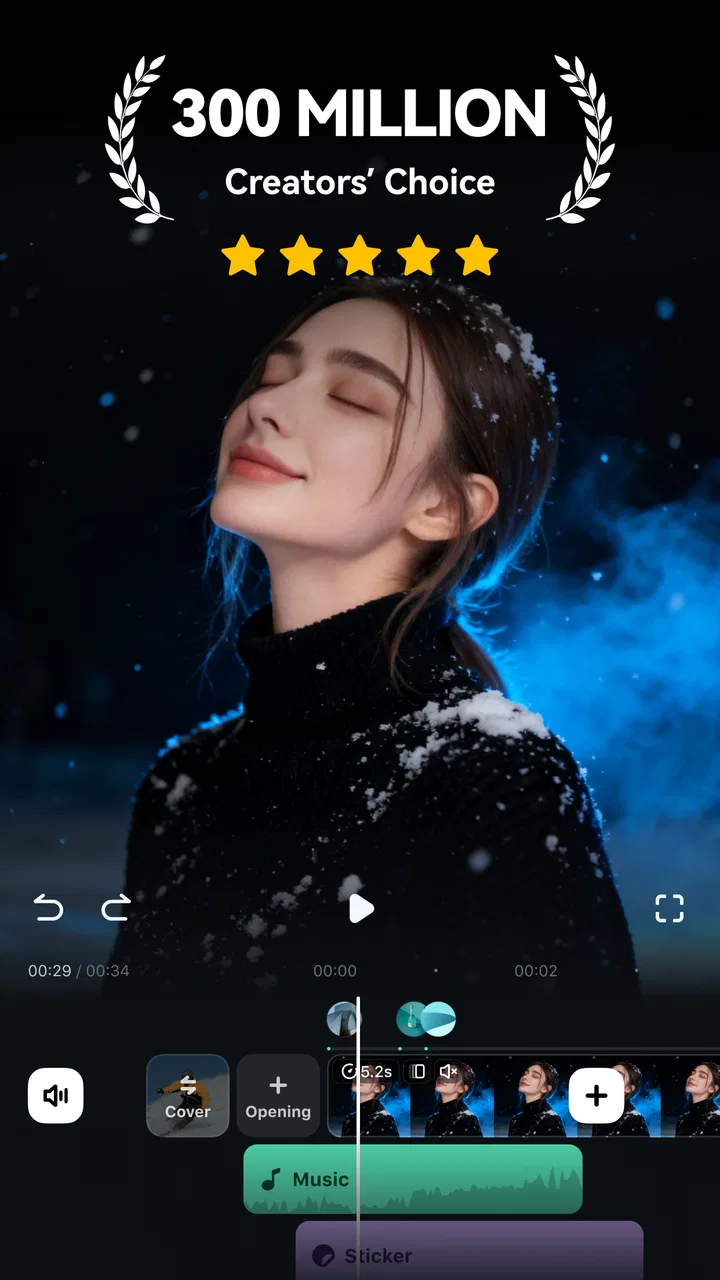
The app’s strongest navigation choice is its emphasis on templates and guided creation. Someone who does not know where to begin can start from a visual direction instead of facing an empty timeline. This matters for new editors, older users who prefer clear steps, and anyone working on a phone while distracted. The short description identifies it simply as “Filmora AI,” but the practical experience is broader: it combines assisted generation with familiar editing tasks.
I would still avoid judging a project by the first preview alone. AI-generated arrangements can look polished at a glance while hiding small problems in captions, transitions, or the order of clips. My useful habit was to preview the entire video once without touching anything, then watch it again while checking the details. That two-pass method catches issues more reliably than editing only the opening seconds.
Text-heavy controls are less comfortable when I am outside, moving between places, or using the phone one-handed. I preferred preparing the source clips first and keeping the editing session focused. If you have difficulty distinguishing small interface elements, the best experience will come from using the phone’s own display settings and working in a calm environment rather than attempting detailed edits in a hurry.
Motor demands and the value of guided editing
Filmora AI can reduce the number of precise gestures needed to produce a basic result. Instead of manually building every cut, I could begin with an assisted structure and spend my effort on choosing usable footage. That is a meaningful advantage for people who find repeated dragging, trimming, or tiny timeline adjustments uncomfortable.
There is an important trade-off, though. Guided editing is helpful only when the generated arrangement is close to what I want. When it is not, correcting several small timing decisions can become more demanding than making a simple edit from scratch. I found the app most suitable for short videos where an imperfect first draft is easy to inspect and revise.
A practical workflow is to record clips with a little extra space at the beginning and end. That gives the editor more flexibility and reduces the need for extremely precise trimming. I also kept the number of source clips under control. Feeding in every possible take may seem convenient, but it makes reviewing the result harder and can increase the amount of corrective work afterward.
For users with limited hand movement, the difference between creating and refining is important. The initial AI-assisted step may feel accessible, while detailed corrections can still require steady tapping and dragging. I would recommend starting with a small project before committing to a longer montage. That quickly reveals whether the editing gestures suit your comfort and control.
Sound, vision, and sensory comfort
The app is built around visual output and trending music, so sensory comfort depends heavily on how each project is assembled. I would not assume that an energetic template is automatically suitable for everyone. Rapid cuts, flashing transitions, dense captions, or loud music can make a video difficult to follow even when the final result looks fashionable.
My preferred approach was to treat music as one layer rather than the identity of the entire video. For a family update, tutorial, or spoken message, clear voice audio may matter more than a busy soundtrack. I also checked whether captions remained readable against the background instead of trusting the first placement suggested by the app.
AI assistance is particularly useful for users who struggle with visual composition because it can provide a starting arrangement. It should not replace a human check for contrast, legibility, or pacing. A caption that technically appears on screen may still be too brief to read, and a decorative background can compete with the words. I found that simplifying the final result often made it more inclusive than accepting every suggested effect.
People who are sensitive to motion or sound should preview cautiously and consider a restrained template. The app can help produce a video quickly, but the creator remains responsible for deciding whether the finished sequence is comfortable to watch. A quieter, slower edit is often the better choice for instructional or personal content.
Using it in real situations
A realistic example is a small business owner who finishes work, records a few product clips, and wants a short announcement before the evening ends. Filmora AI is well suited to that situation because the owner can begin with a guided style instead of spending an hour learning a complex desktop workflow. I would select only the clearest clips, review the generated order, replace any distracting section, and read every caption before sharing.
It also makes sense for a parent assembling a brief school or family memory video on a phone. The assisted structure can save time, but I would be careful with music and text if relatives have different hearing or vision needs. A clean sequence with readable captions and moderate pacing will usually serve more people than a heavily decorated template.
For travel clips, the app is convenient when the goal is a quick highlight rather than a carefully graded film. On the other hand, editing while walking, on public transport, or in bright sunlight is not ideal for detailed review. Situational access is therefore mixed: the app supports fast creation, but good judgment still requires enough attention to inspect the result.
The free price makes experimentation straightforward, which I appreciated. There are in-app purchases ranging from $4.99 to $119.99 per item, so I would avoid treating the free starting point as the whole cost decision. Before paying for anything, I would first complete a small project, identify which part of the workflow actually saves time, and decide whether that benefit justifies an optional purchase.
Where it stands beside ordinary mobile editors
Compared with a traditional mobile timeline editor, Filmora AI is more attractive when I want a starting point immediately. Conventional editors usually reward patience and precise control; this one puts more emphasis on templates, assisted choices, and a faster path to a presentable draft. That makes it approachable for casual creators and people who do not enjoy building a sequence clip by clip.
The reverse is also true. If I need exact timing, a carefully controlled narrative, or detailed audio work, a conventional editor may be the better fit. AI assistance can suggest a direction, but suggestion is not the same as control. I would choose Filmora AI for speed and inspiration, then move to a more manual tool when the project depends on precise decisions.
It is also different from a basic social-media editor that focuses mainly on quick filters and simple trimming. Filmora AI feels more useful when I want the app to help shape the whole video rather than merely decorate an existing clip. That extra assistance is valuable, but it also means I need to spend time checking whether the app’s choices match my purpose.
Remaining barriers before you commit
The biggest barrier is not the first creation step; it is the review stage. A generated video can tempt users to publish too quickly. For accessible communication, that is risky because unreadable text, abrupt pacing, or unclear audio affects viewers who were not part of the editing process. I strongly recommend treating the first output as a draft.
Another limitation is the gap between simple and demanding projects. A short announcement, greeting, or highlight reel can benefit from automation. A longer story with many scenes may become harder to manage if the suggested structure requires extensive correction. In that case, the convenience of the initial generation may be outweighed by the effort needed to regain control.
Device familiarity also matters. Someone comfortable with mobile editing will probably understand how to inspect and adjust the result quickly. A first-time creator may need a slower learning period, especially when deciding which suggestions to keep. The app lowers the barrier to starting, but it does not eliminate the need to learn basic video judgment.
The current version is 15.1.97, and it requires Android 7.0 or later. That makes it relevant to many Android users, while anyone on an older system will need to check compatibility before planning a workflow. The age rating is Everyone, which fits the broad, general-purpose nature of the editor, but parents and educators should still review finished videos for music, imagery, and wording before sharing them with children.
Who will get the most from it
I would recommend Filmora AI to a beginner who wants a finished-looking short video without learning every conventional editing control first. It is also a good match for creators who regularly make social clips, personal updates, event recaps, or simple promotional material and value a quick first draft.
It may help users who find blank-canvas editing intimidating. Starting from an AI-supported template gives them something concrete to evaluate, and that is often easier than making every creative decision alone. The app is also useful for people who edit in short sessions, because a guided workflow can make progress possible even when there is little uninterrupted time.
I would skip it as a primary editor if your work depends on exact frame-level decisions, highly controlled sound mixing, or a long, complex timeline. I would also be cautious if you dislike reviewing automated results. The time saved at the beginning is real only when you are willing to inspect and correct what follows.
My inclusive verdict
Filmora AI succeeds when it acts as a helpful creative starting point rather than an unquestionable decision-maker. I liked its ability to turn a vague idea into a workable mobile video and its potential to reduce repetitive editing for short projects. The free entry point makes it easy to test, while the paid options mean I would evaluate the practical benefit before spending more.
Its support for different abilities and contexts is promising but uneven. Guided creation can reduce planning and fine-motor demands, yet detailed corrections, small text, fast visuals, and busy audio can still create barriers. The most inclusive results came from simplifying the edit, checking captions, moderating motion, and previewing the complete video before sharing.
With over a million installs and a 3.7 average from around two thousand ratings, it has clearly attracted a substantial audience, though those figures are not a substitute for trying the workflow yourself. My recommendation is straightforward: use it when you want speed, inspiration, and a mobile-friendly first draft; choose a more manual alternative when precision and total control matter more. The best reason to use Filmora AI is not that it edits for you, but that it gives you a practical draft you can thoughtfully improve.
FAQs for Filmora Lite: AI Video Creator
01What is Filmora AI: AI Video Generator?
Filmora AI: AI Video Generator is an advanced video editing application designed for both Android and iOS users. It utilizes artificial intelligence to simplify the video creation process, allowing users to generate professional-quality videos with just a few taps. The app offers a range of features, including automated editing, effects, and transitions.
02How does the AI feature work in Filmora AI?
The AI feature in Filmora AI analyzes your raw footage to identify key elements such as faces, scenes, and objects. It then automatically edits the video by applying predefined styles and effects, ensuring a polished final product. This feature is ideal for users who want quick results without manual editing.
03Is Filmora AI suitable for beginners?
Yes, Filmora AI is designed with user-friendliness in mind, making it ideal for beginners. The intuitive interface and AI-driven features simplify the editing process, allowing users with no prior experience to create stunning videos. Tutorials and guides are also available to help new users navigate the app effectively.
04What are the main features of Filmora AI?
Filmora AI offers a variety of features, including AI-driven editing, customizable templates, voiceover capabilities, and a library of music and sound effects. Users can also access advanced editing tools like multi-layer editing and motion tracking, catering to both casual creators and professional editors.
05Are there any in-app purchases or subscriptions required?
Filmora AI is available as a free download, but it offers in-app purchases for premium features and content. Users can opt for a subscription model to access additional templates, effects, and advanced editing tools. This allows flexibility in choosing the level of investment based on the user’s needs.
Pros
- Intuitive AI-driven editing tools.
- Wide range of customizable templates.
- Easy social media sharing.
- Fast rendering and exporting times.
- Supports multiple video formats.
Cons
- Occasional crashes on large projects.
- Limited free version features.
- Requires internet for AI tools.
- In-app purchases can be pricey.
- Some features have a learning curve.

Filmora Lite: AI Video Creator
Gallery